Batch task execution in Google Earth Engine Code Editor
Have you ever had a problem when you wanted to download the entire data of an ImageCollection from Google Earth Engine (GEE), but you were lazy and bored when you had to click on each available date to save it on Google Drive?
Are you looking for a solution on how to do it in more efficient way? Then, this blog post is for you!
This week I am working on analysis of phenological metrics for food crops, I need a timeseries vegetation index data and I will use MODIS Vegetation Indices (VI) data. What I usually do is download the data through NASA AppEEARS, then pre-process it (remove pixel with bad quality based on Pixel Reliability layer) using GIS software.
Now I would like to use GEE to download the cleaned (pre-process) MODIS VI, I will try to get MOD13Q1 (Terra) and MYD13Q1 (Aqua), and combine the two 16-day composites into a synthethic 8-day composite containing data from both Aqua and Terra.
Ok, let start!
I need to define the geographic domain, I will use Ukraine as an example.
Then I need to import the data and define the time range. For the reference, the data is available at GEE Data Catalog:
- Terra - https://developers.google.com/earth-engine/datasets/catalog/MODIS_006_MOD13Q1?hl=en
- Aqua - https://developers.google.com/earth-engine/datasets/catalog/MODIS_006_MYD13Q1?hl=en
For this example, I will try to download all data in 2021. As Terra and Aqua has 23 data for each year (16-day), the total data for both Aqua and Terra will be 46.
As I will pre-process the VI using GEE, I need to create a function to apply the QA Bitmask, so at the end I will get cleaned (pixel with good quality only) VI data. Bitmask information are available from above link, or you can check below.
I am using bitwiseExtract function from Daniel Wiell
Example: A mask with “Good data, use with confidence” would be “bitwiseExtract(image, 0, 1).eq(0)”
Now, let’s apply the SummaryQA and DetailedQA. As example in below code, I will use “Good data, use with confidence” and “VI produced with good quality”.
Next, let’s filter the data based on preferred time range and select EVI, SummaryQA and DetailedQA layer for both Aqua and Terra.
Removed bad pixel by mask using above function from the collection of images.
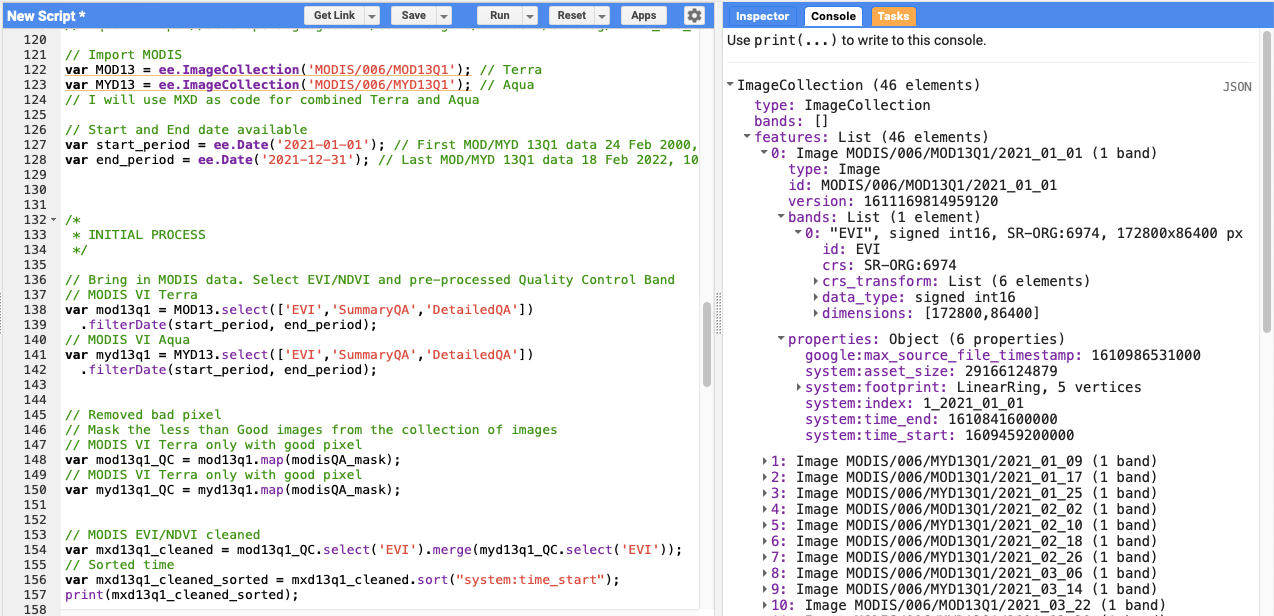
Combine Aqua and Terra into single Image Collection and sorted from the earliest date, then I will have VI with 8-day temporal resolution.
And below is the result from “print” command.
Create a symbology, and test the output as expected or not by add the last map to map display.
To download the data, usually I use standard code like below.
To batch export for all data in the ImageCollection, use below code.
Using above code, you will have 46 unsubmitted tasks that required you to click all the RUN button. I know, clicking 46 button is not a big deal. But, by doing this frequently or you need to download more than 500 data, it’s very boring.
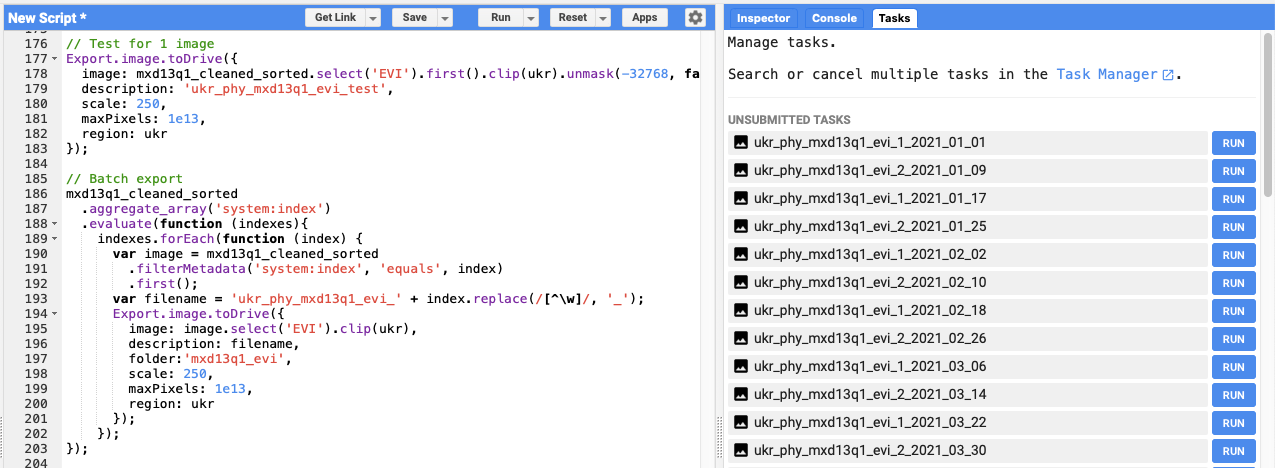
How to export all the data without clicking on RUN button? Thanks to Dongdong Kong and yzq.yang for creating the script.
Below is the step-by-step:
Run your Google Earth Engine code;
Wait until all the tasks are listed (the Run buttons are shown);
Click two computer keys fn and f12 at the same time and bring up console; or find it via: menubar Develop > Show JavaScript Console (Safari), and menubar View > Developer > JavaScript Console (Chrome)
Copy and paste below code into the console, then Enter;
Wait until the code sends messages to the server to run all the tasks (you wait and relax); wait until GEE shows the dialogue window asking you to click “Run”; (below picture)
Please bear in mind, the time execution is depend on the image size you will export. Example, 1 year data for Ukraine on MODIS VI takes a minute below picture to popup.
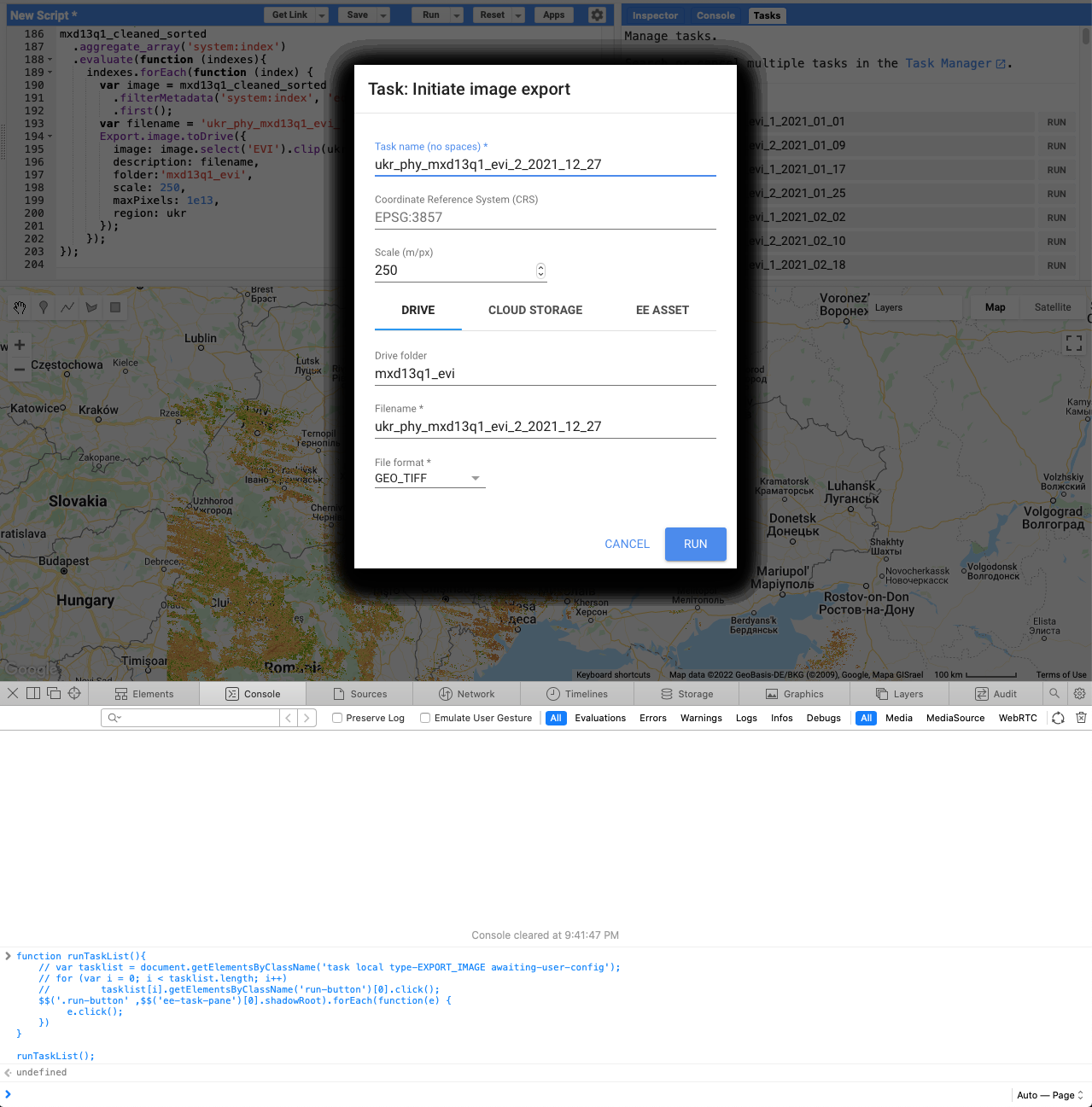
Copy and paste below code into the console, then Enter;
Keep your computer open until all the tasks (Runs) are done (you probably need to set your computer to never sleep).
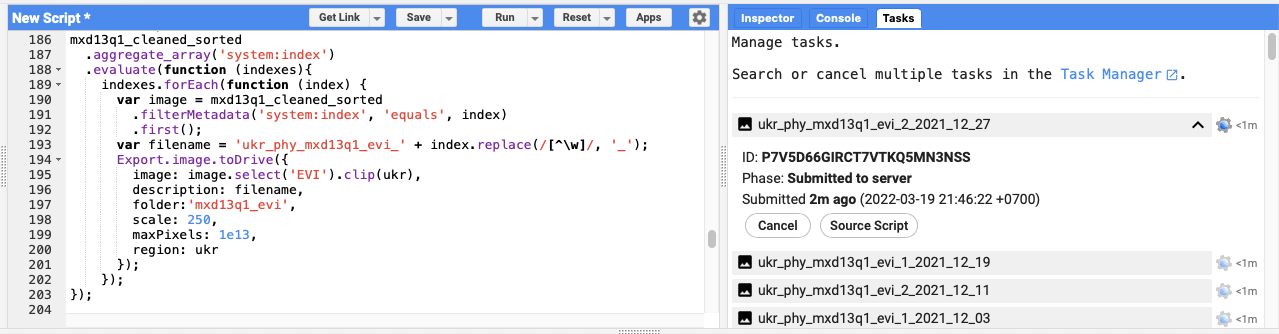
You can close your browser or computer after all the Tasks running and submitted to server.
Link to code
NOTES:
The preferred and more stable way to do batch exports is using the Python API. Or you can try geemap and the example notebook from Qiusheng Wu.
Back to top